1. Before you install
- HTTPS. Browsers only talk to security keys on pages opened over
https://(orhttp://localhostfor tests). Odoo.sh is always HTTPS. - The fido2 Python library. On Odoo.sh add a line
fido2to therequirements.txtat the root of your repository; Odoo.sh installs it on the next build. On your own server runpip install fido2in Odoo’s Python environment and restart Odoo.
2. Settings
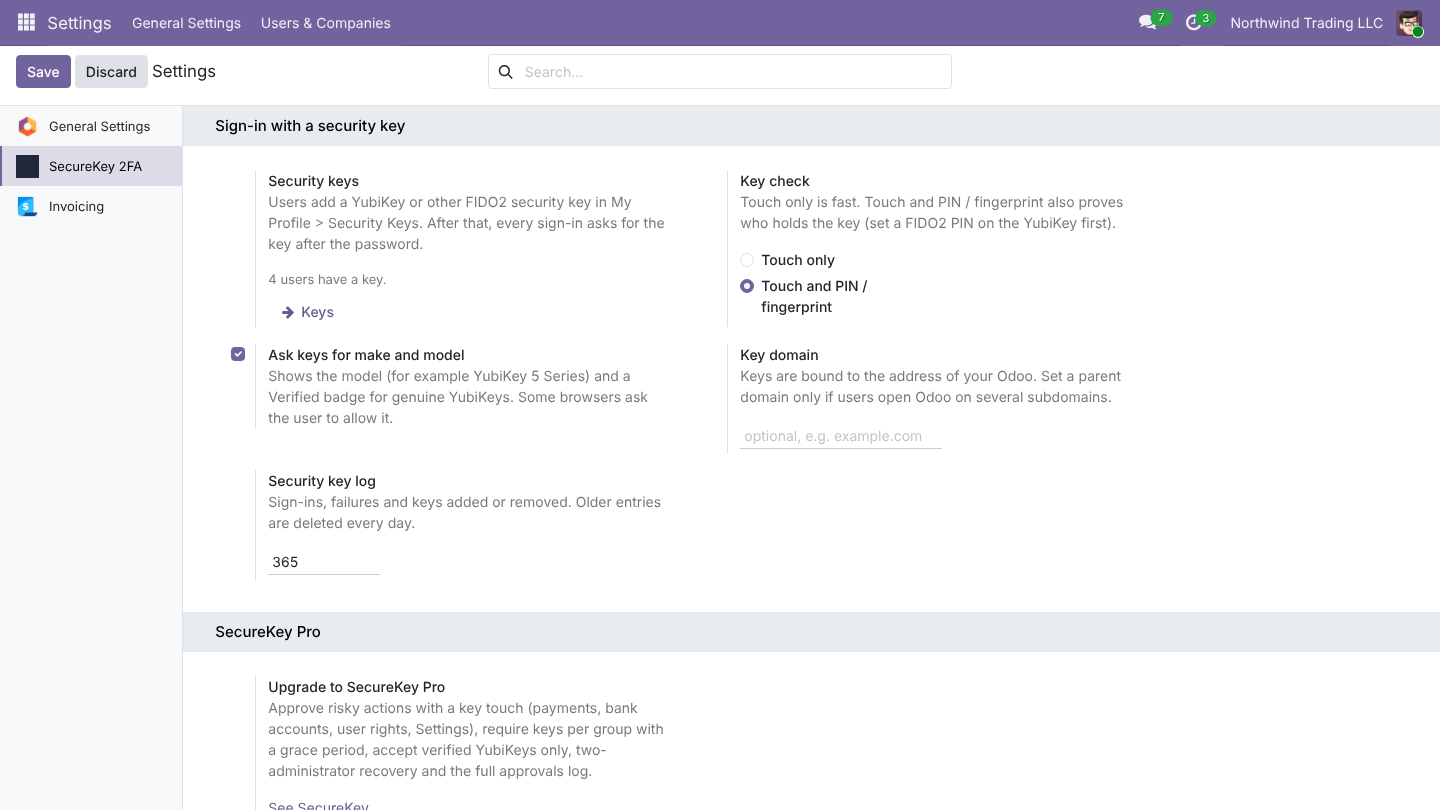
Open Settings > SecureKey 2FA.
| Setting | What it does |
|---|---|
| Security keys | How many users have a key, with a link to all keys. |
| Key check | Touch only (fast), or Touch and PIN / fingerprint: the user also enters the key’s FIDO2 PIN or uses its fingerprint. Set a PIN on a YubiKey with Yubico Authenticator. |
| Ask keys for make and model | Odoo asks the key for its maker certificate. Genuine YubiKeys get a Verified badge and their model name. Some browsers ask the user to allow it. |
| Key domain | Keys are bound to the address of your Odoo. Leave it empty, or set a parent domain (for example example.com) only if users open Odoo on several subdomains. Changing it later makes existing keys stop working. |
| Security key log | Days to keep the log (365 by default). |
3. Add the first key
- Click your avatar, then My Profile (or Preferences), tab Security Keys, Manage security keys.
- Type a name, for example YubiKey 5C Nano, and click Add key.
- Confirm your Odoo password, insert the key and touch it when it blinks.
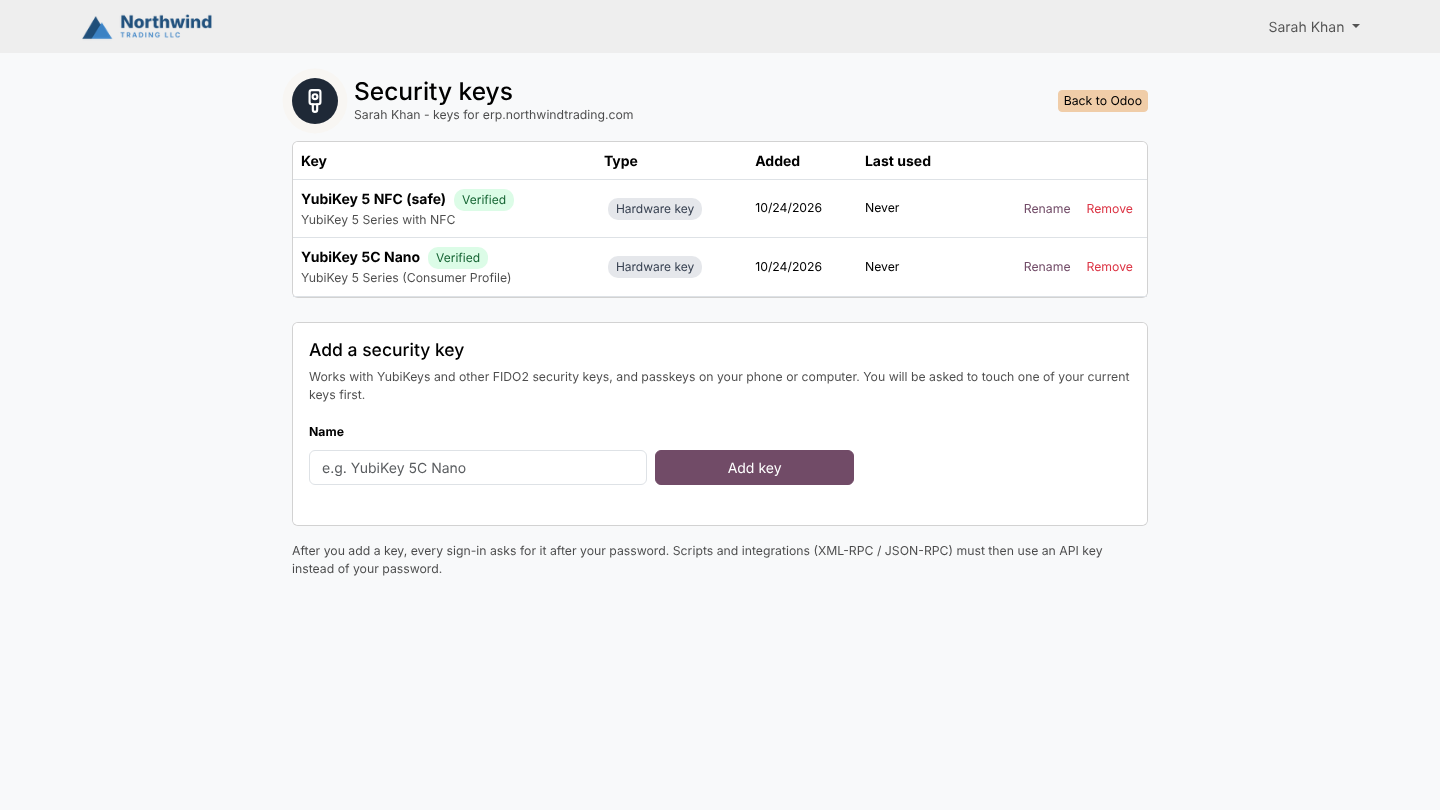
From now on every sign-in asks for the key after the password.
Add a second key right away and keep it in a safe place. Adding more keys, and removing one, needs a touch of a key you already have.:
4. Scripts and integrations
Users with a key can no longer call XML-RPC or JSON-RPC with their password. Create an Odoo API key for them (My Profile > Account Security > New API Key) and use it in place of the password.
Emergency switch
If every administrator lost their keys, add this line to the Odoo configuration file and restart Odoo:
novator_securekey_disable = True
Keys are not asked until you remove the line. On Odoo.sh, open the shell of the branch, add the line to the Odoo configuration file and restart Odoo. Remove the line as soon as an administrator has a key again.
Odoo is a trademark of Odoo S.A. SecureKeys, SecureKey 2FA and Action Approvals are independent products by Novator Technologies. They are not official Odoo products and are not endorsed or supported by Odoo S.A. Trademark notice.