Pro installs on top of the free app and keeps every key. It adds a Policy block to Settings > SecureKey 2FA and the Recovery Requests menu under Settings > Users & Companies > SecureKey. Protected actions come from the free Odoo Action Approvals, installed with Pro: the security key is one of its confirmation methods, next to passkeys, authenticator codes and the password.
Policy
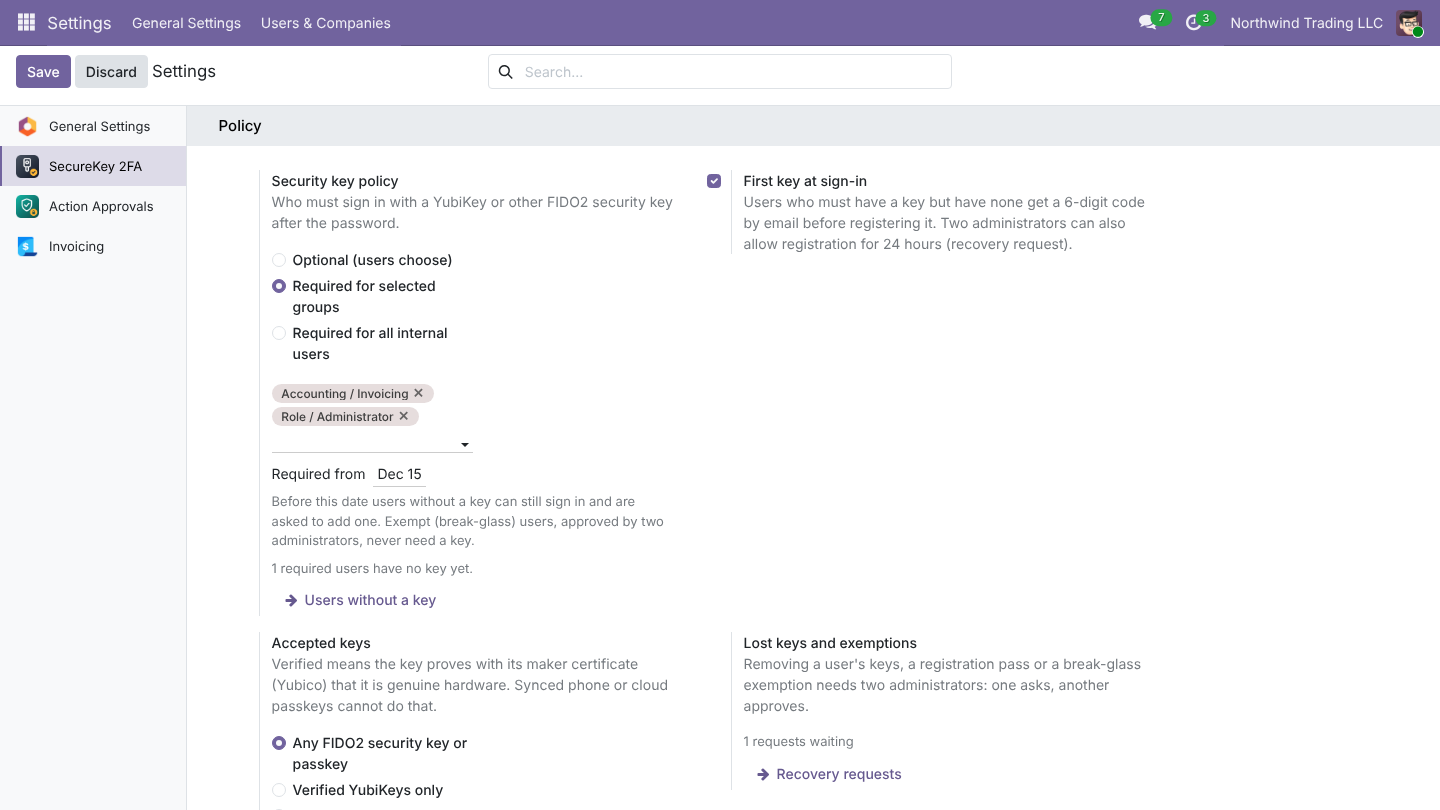
| Setting | What it does |
|---|---|
| Security key policy | Optional (users choose), Required for selected groups (for example Accounting / Invoicing and Role / Administrator), or Required for all internal users. |
| Required from | Start date. Before it, users without a key can still sign in and see a reminder to add one. From that date they must add a key at sign-in. |
| Users without a key | Opens the users who must have a key and have none yet. |
| First key at sign-in | Users who must have a key but have none get a 6-digit code by email (valid 10 minutes, 5 tries) before registering it. Turn it off to let only a recovery request open registration. |
| Accepted keys | Any FIDO2 security key or passkey, Verified YubiKeys only (synced passkeys and other brands refused), or a list of models (AAGUIDs). |
| Lost keys and exemptions | Recovery requests, see below. |
Odoo refuses to save a policy that would lock you out (it applies to you and you have no key). Add your key first, or have a second administrator approve an exemption for you.
What users see
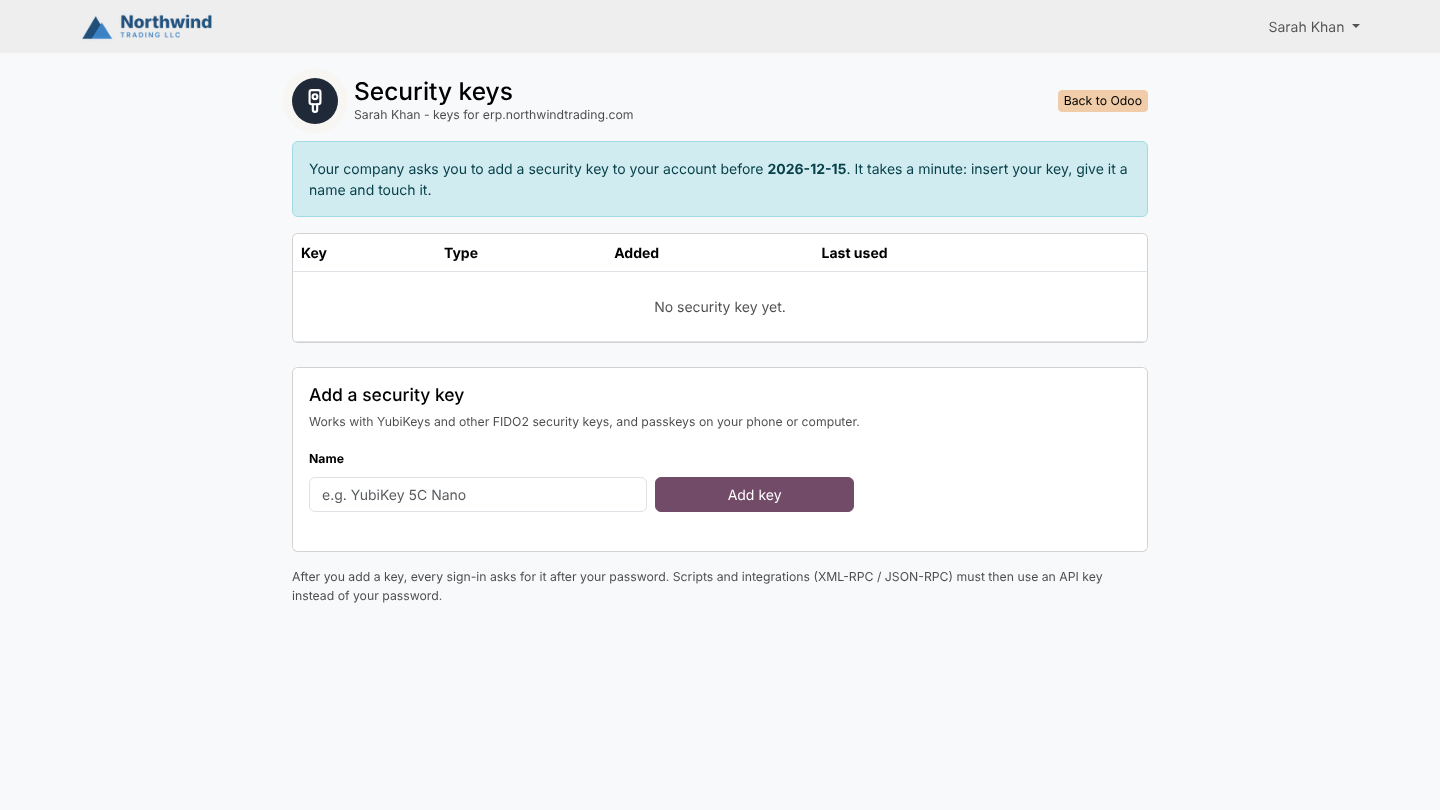
Before the start date, internal users in the policy land on the key page with a reminder after signing in:
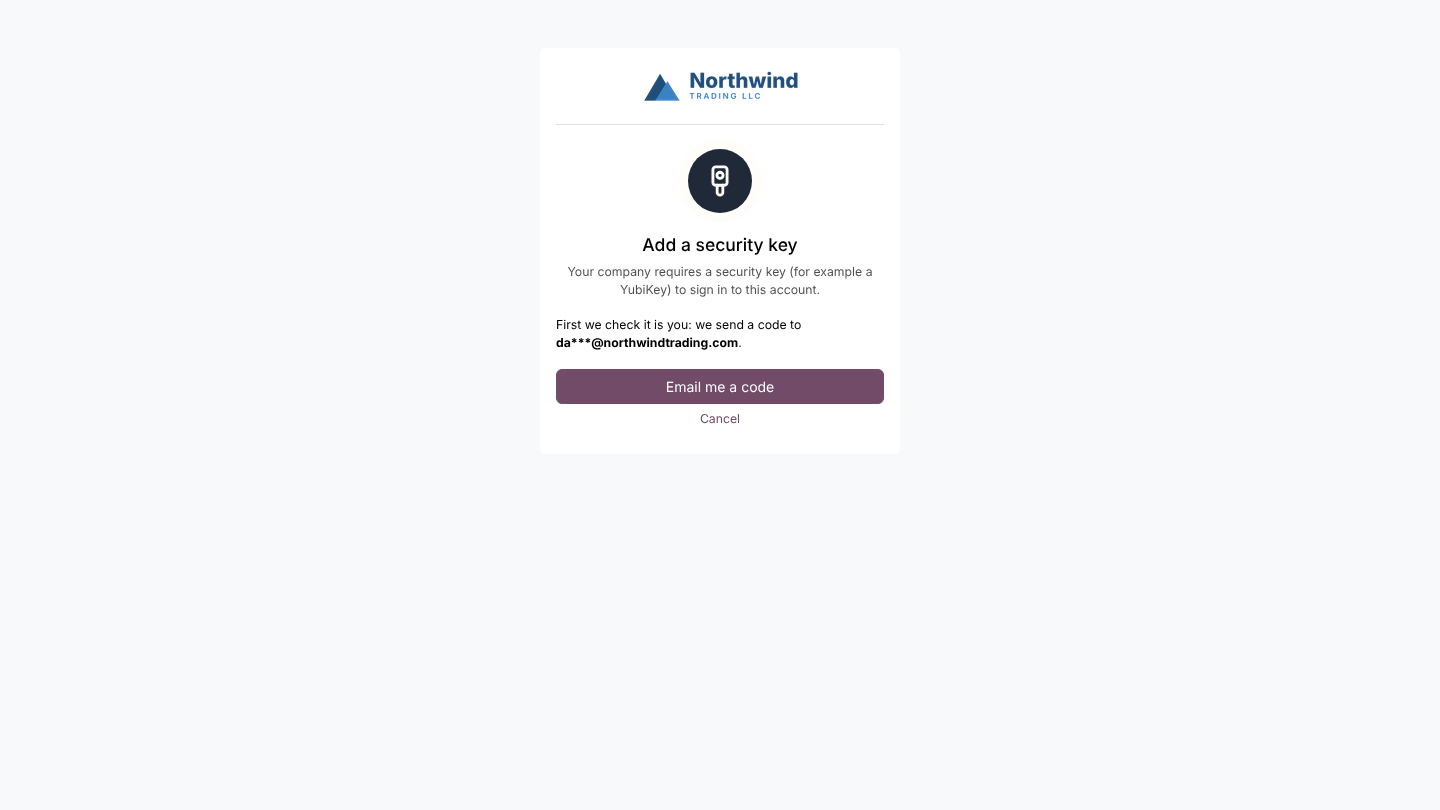
After the start date, a user without a key is asked for the email code, then adds the key:
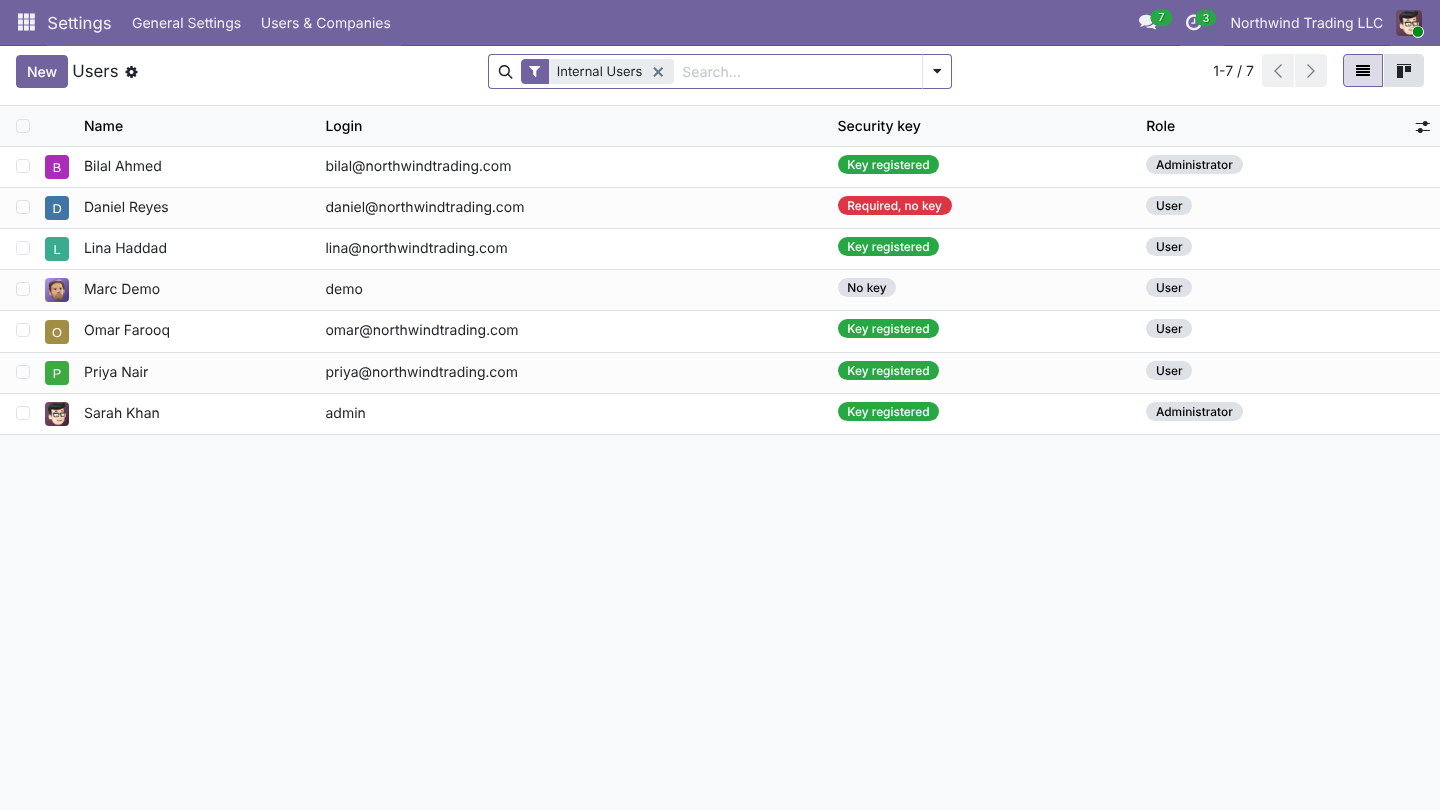
The users list shows each user’s key status, and the search has Security key required, none yet and Exempt (break-glass) filters.
Protected actions
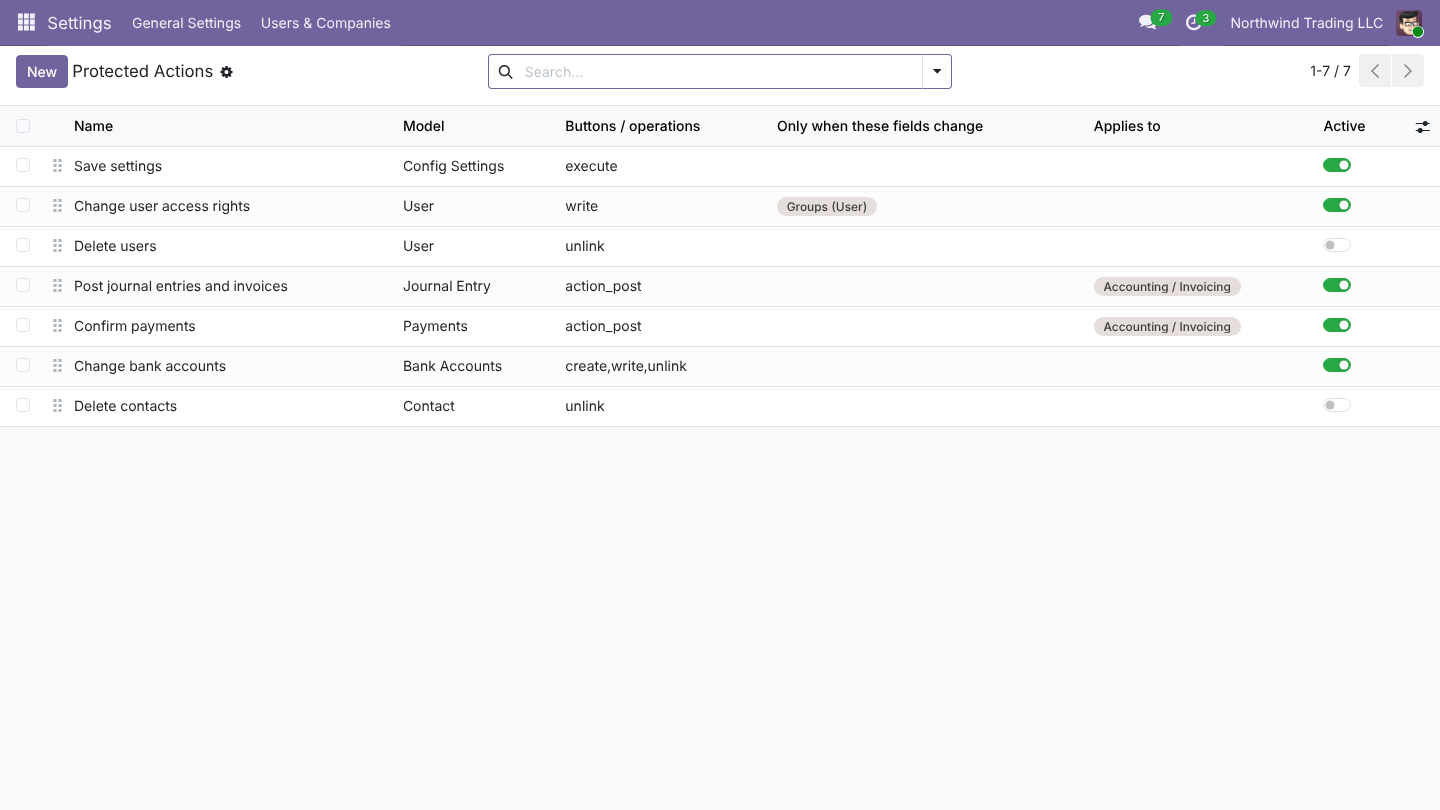
A protected action asks for one touch of the user’s key before a button or operation runs. Seven suggested rules are installed switched off; open Settings > Users & Companies > Action Approvals > Protected Actions, filter Switched off / suggested and activate the ones you need:
| Rule | Model | Runs on |
|---|---|---|
| Save settings | Config Settings | execute |
| Change user access rights | User | write, when Groups change |
| Delete users | User | unlink |
| Change bank accounts | Bank Accounts | create, write, unlink |
| Delete contacts | Contact | unlink |
| Post journal entries and invoices | Journal Entry | action_post |
| Confirm payments | Payments | action_post |
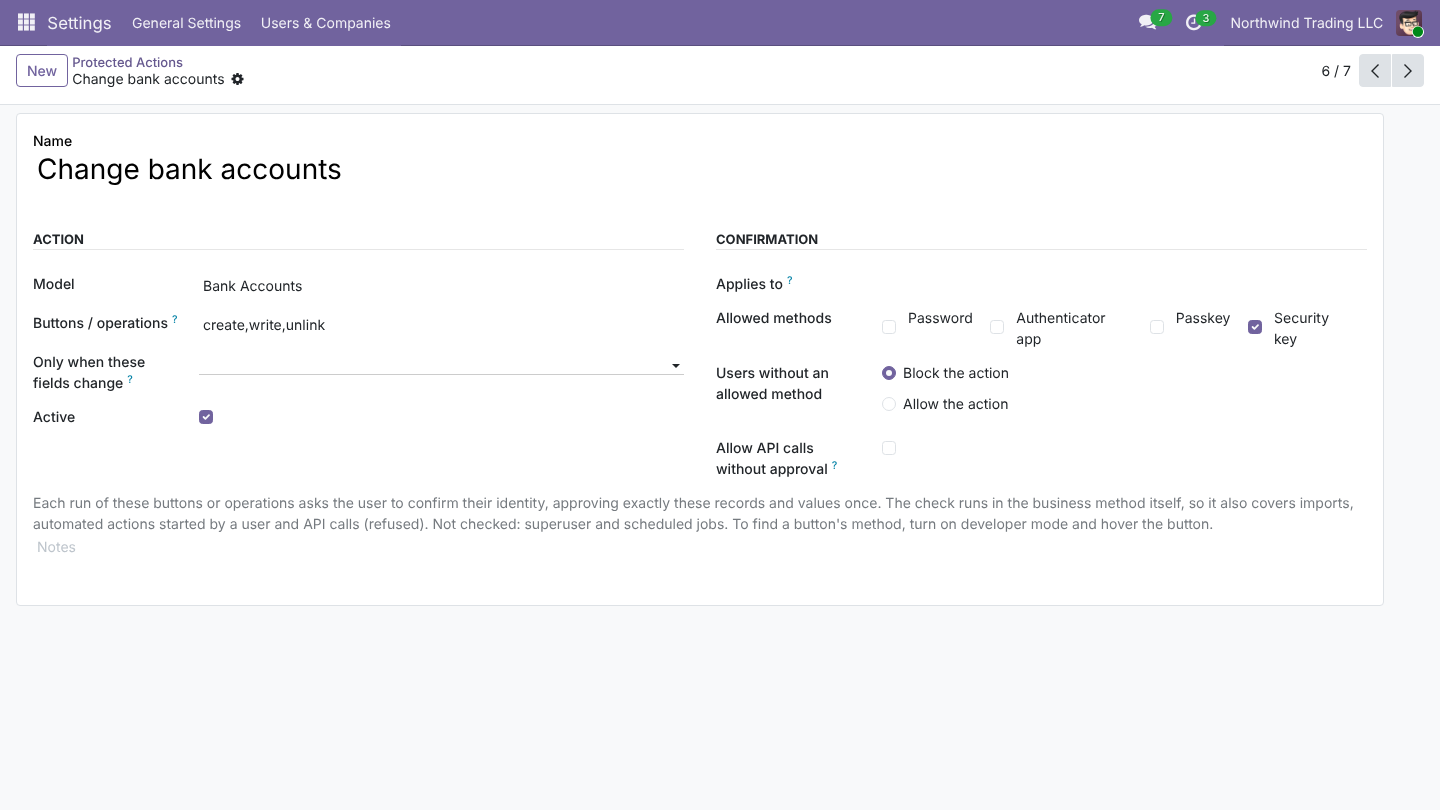
A rule
| Field | What it does |
|---|---|
| Model | The kind of record. |
| Buttons / operations | Method names separated by commas: a button’s method (for example action_post), or create, write, unlink. In developer mode, hover a button to see its method. |
| Only when these fields change | For write and create: ask only when one of these fields changes. |
| Applies to | Only users in these groups. Empty: everyone. |
| Allowed methods | Security key, and (if you want) passkey, authenticator app or password. Rules moved from SecureKey Pro 1.0 allow the security key only. |
| Users without an allowed method | Block the action, or Allow the action for users who have no key yet. |
| Allow API calls without approval | XML-RPC / JSON-RPC calls cannot touch a key, so they are refused unless this is ticked. |
Approving
- The user clicks the button (for example Confirm on an invoice).
- Odoo shows Confirm this action, with Security key selected: the user touches the key.
- Odoo shows Approved. Click the button again to run it. The user clicks again and the action runs.
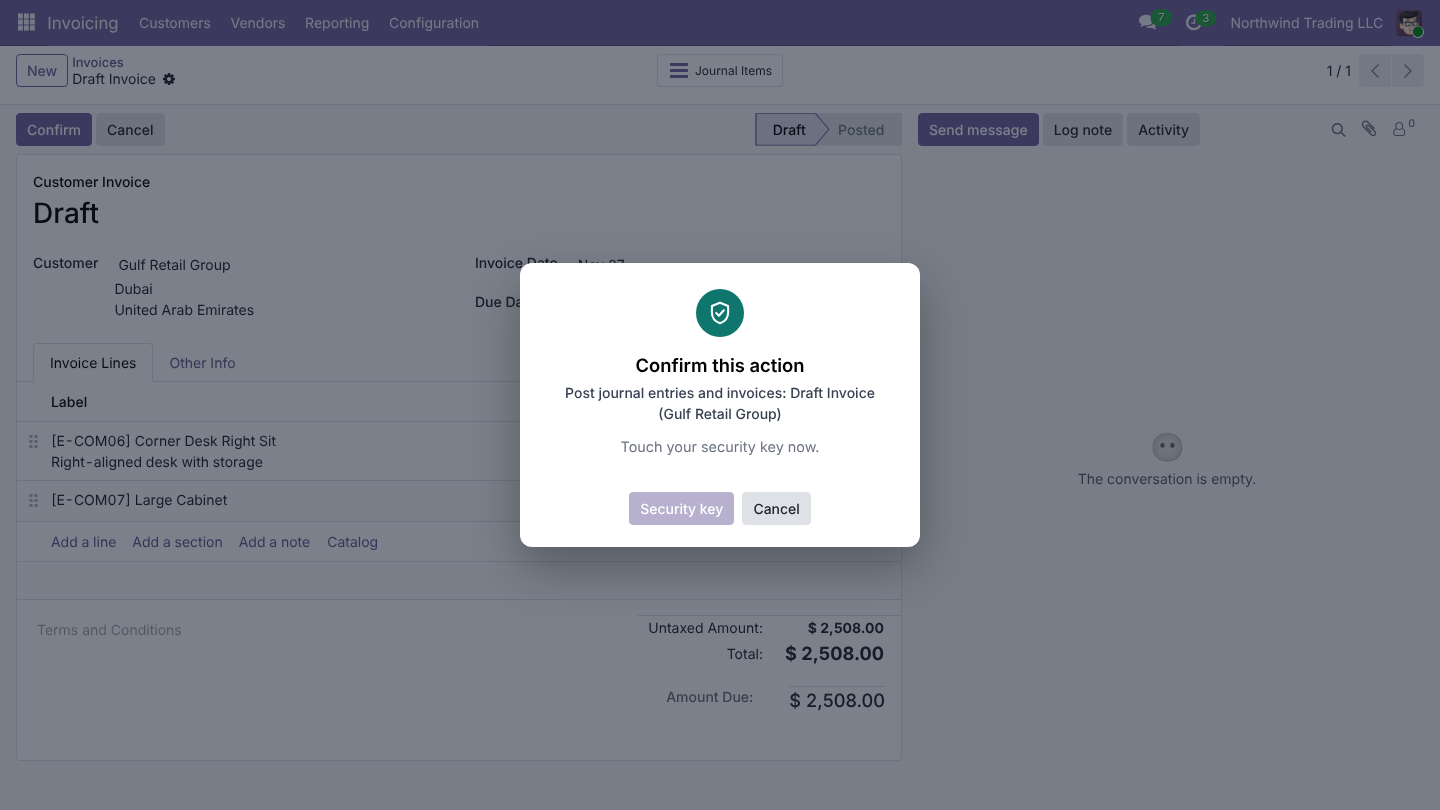
The approval is bound to the same user, records and values, used once, and valid for the minutes set in Settings > Action Approvals > Approval valid for (5 by default). If a record or the values change in between, a new touch is needed.
The check runs in the business method on the server, so imports, automated actions started by a user and API calls are covered too. It is not run for the superuser, scheduled jobs and server code without a user request, and actions called from inside an action already approved.
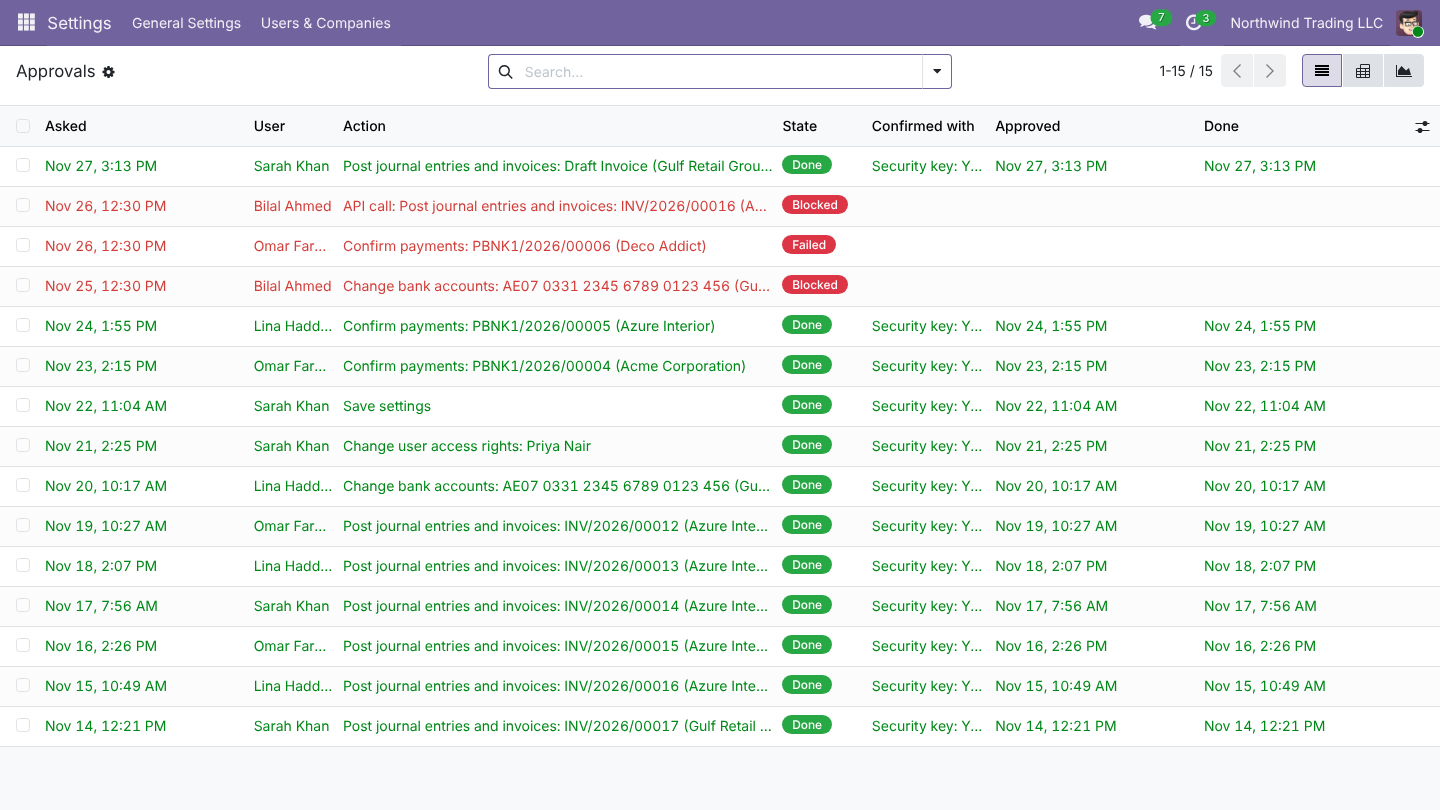
Approvals list
Action Approvals > Approvals shows every approval: when it was asked, user, action, state (Approved, Done), how it was confirmed (for example Security key: YubiKey 5C Nano), approved and done times.
Recovery requests
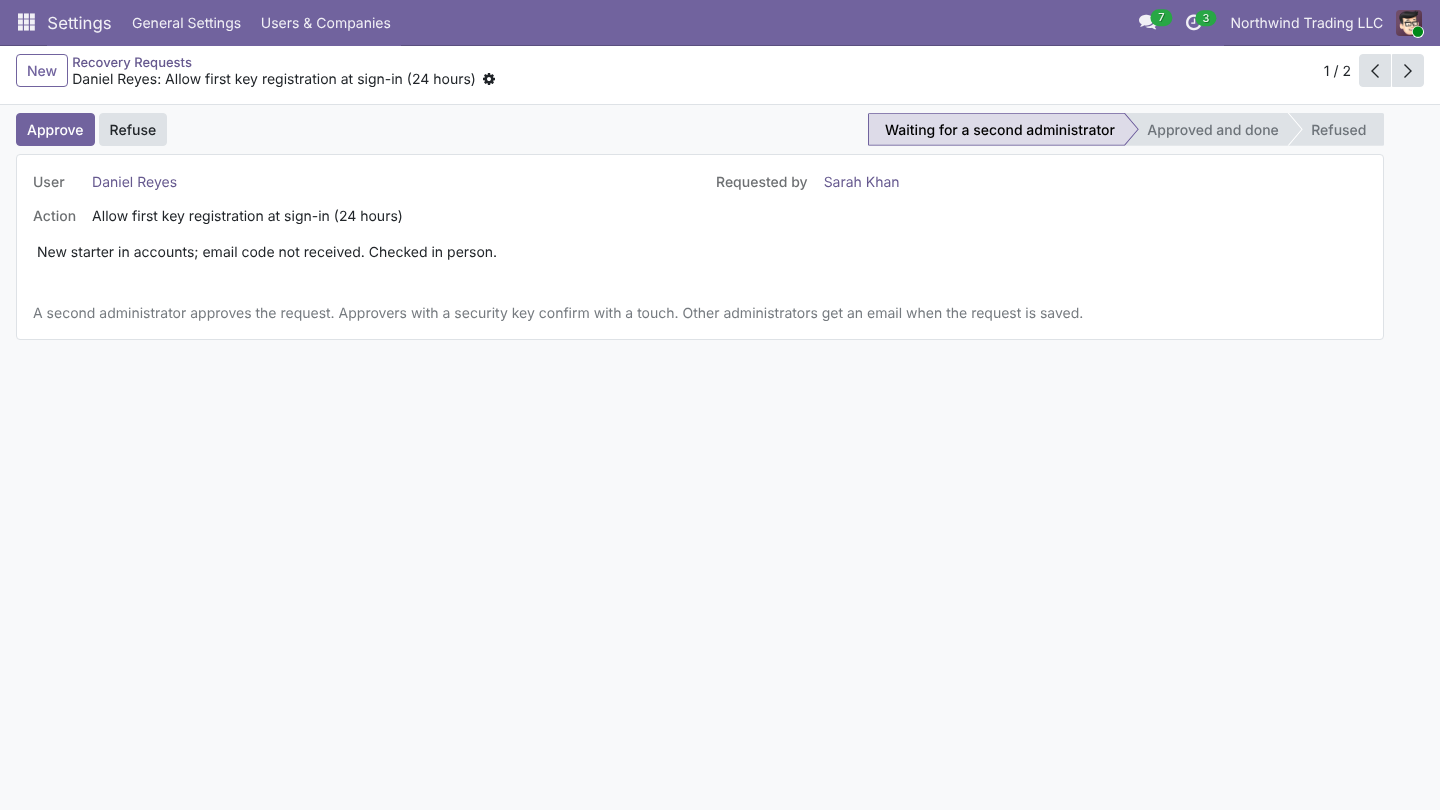
With Pro, nobody can remove a user’s keys or exempt a user alone. SecureKey > Recovery Requests > New:
| Action | Use it when |
|---|---|
| Remove all security keys | The user lost all keys. |
| Allow first key registration at sign-in (24 hours) | A new user cannot receive the email code. |
| Exempt from the security key policy (break-glass) | An emergency account that must sign in without a key. |
| End the exemption | Back to normal. |
Write the reason and identity check (for example Lost phone, ID checked on a video call). Other administrators get an email; a second administrator opens the request and clicks Approve (touching their own key if they have one) or Refuse. Nobody approves their own request or a request about their own account.
Odoo is a trademark of Odoo S.A. SecureKeys, SecureKey 2FA and Action Approvals are independent products by Novator Technologies. They are not official Odoo products and are not endorsed or supported by Odoo S.A. Trademark notice.