Signing in
- The user enters login and password as usual.
- Odoo shows Security key: insert the key and touch it (and enter the PIN if the key check asks for it).
- Odoo opens.
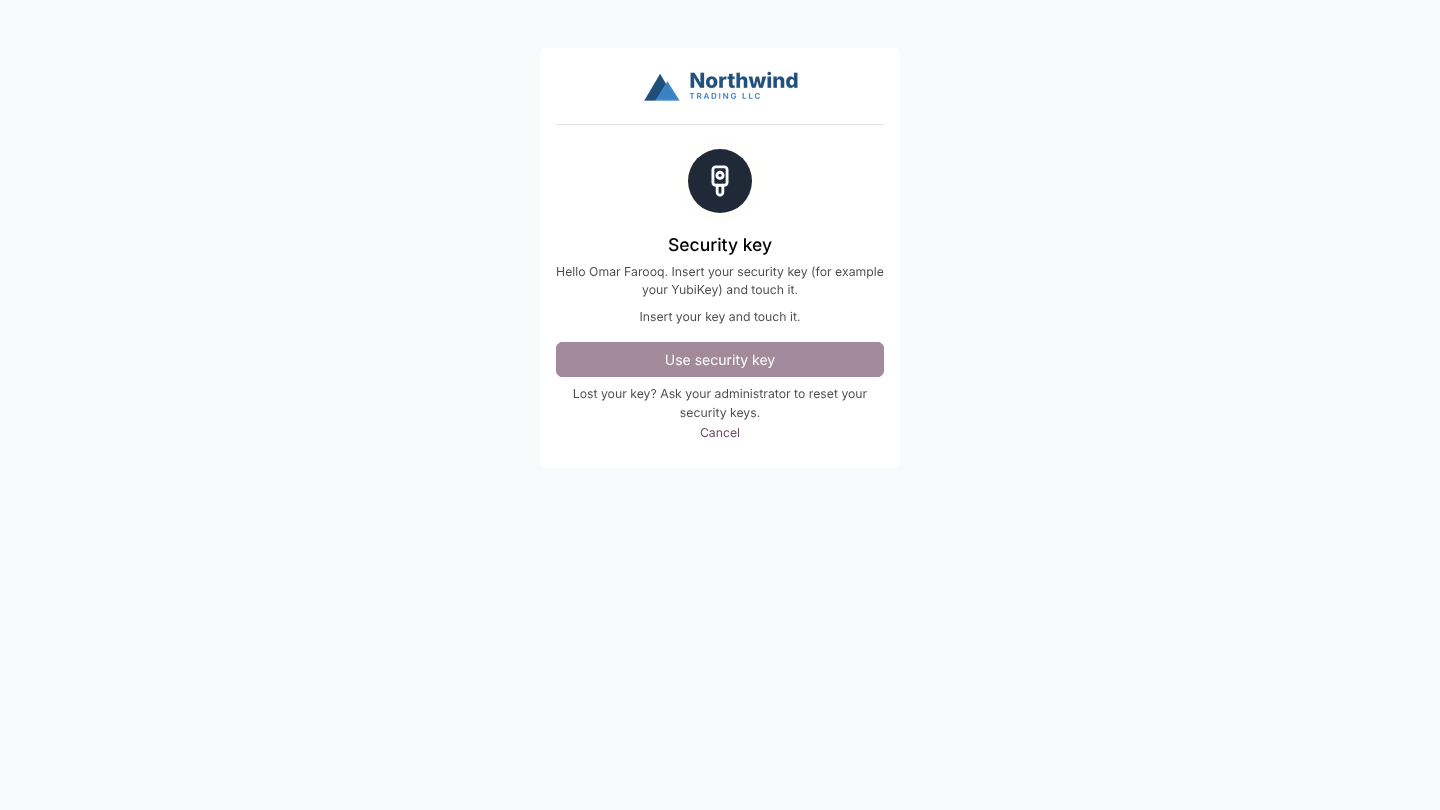
Users without a key sign in as before. Users who also turned on Odoo two-factor authentication (an authenticator app) are asked for the key, not the code.
Lost your key? The page tells the user to ask an administrator, who removes the keys (see below).
The key page
My Profile > Security Keys > Manage security keys lists the user’s keys with their type and last use.
| Column | Meaning |
|---|---|
| Key | The name the user gave, the model (for example YubiKey 5 Series with NFC) and Verified for genuine YubiKeys. |
| Type | Hardware key, or Synced passkey for passkeys stored in a password manager or phone. |
| Added, Last used | Dates. |
- Rename changes the name.
- Remove needs a touch of one of the user’s keys. When the last key is removed, sign-ins ask for the password only (with Pro, users who must have a key add another one first).
Verified badge
With Ask keys for make and model on, Odoo checks the key’s maker certificate against the Yubico root certificates bundled with the app (including keys with firmware 5.7 and later). The badge proves the key is a real YubiKey. Other keys still work, without the badge.
If a key’s signature counter goes backwards, Odoo refuses the sign-in and logs it: this is the sign of a cloned key.
For administrators
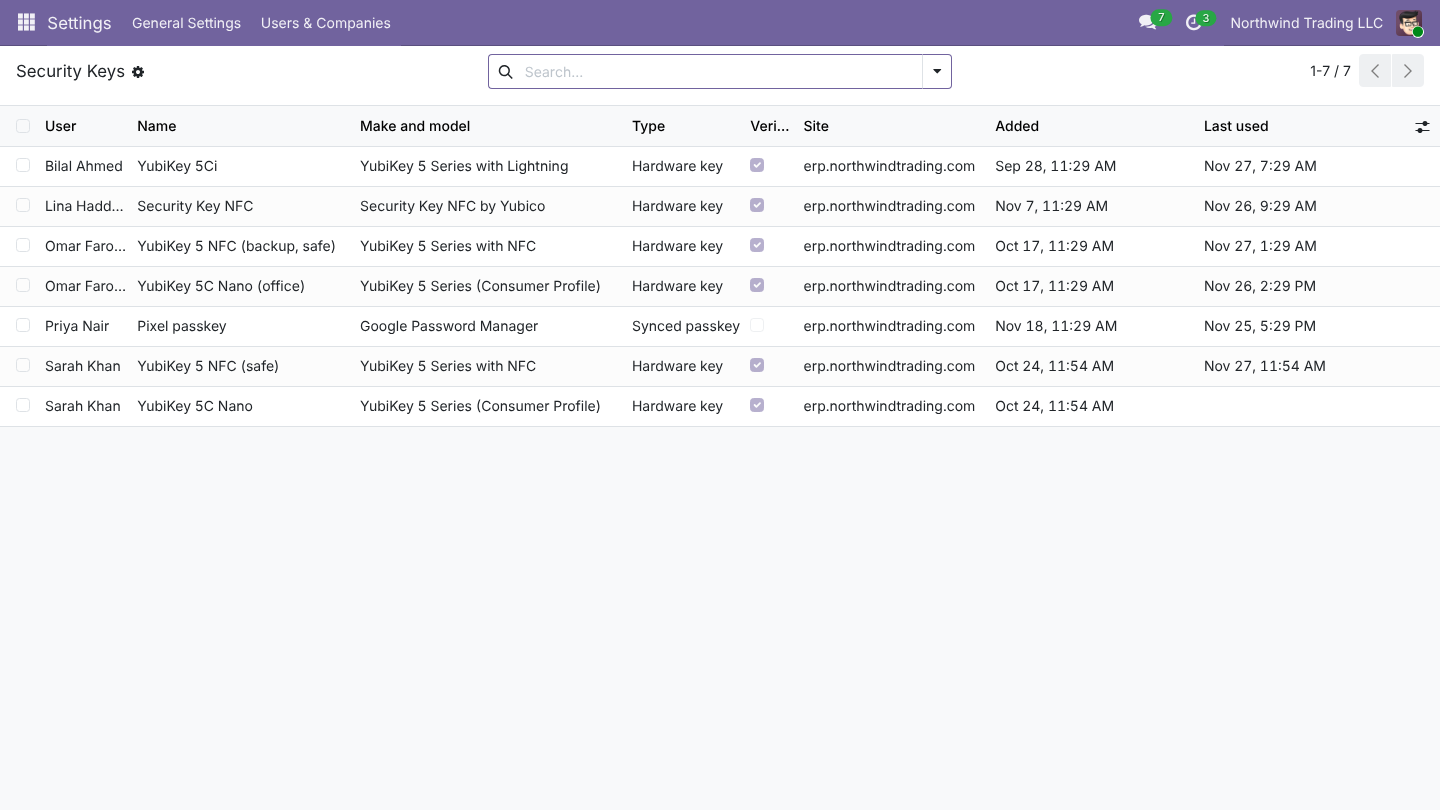
Settings > Users & Companies > SecureKey > Keys lists every key: user, name, make and model, type, Verified, site, added and last used.
Each user form has a Security Keys tab with the user’s keys and status.
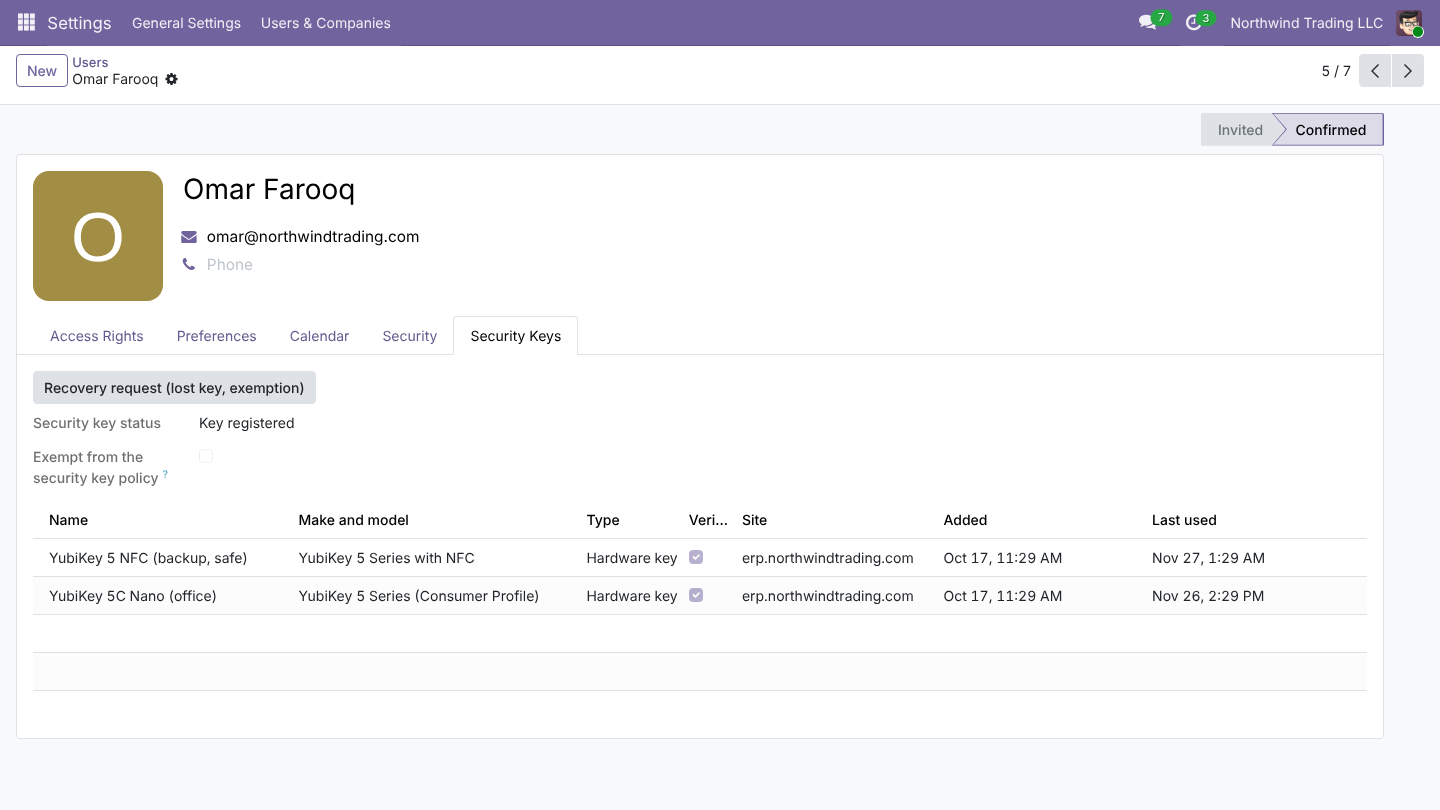
Remove all keys (lost key) on the tab removes the user’s keys so they can sign in with the password and add a new key. It is written in the log. With Pro this opens a recovery request for a second administrator.
Key log
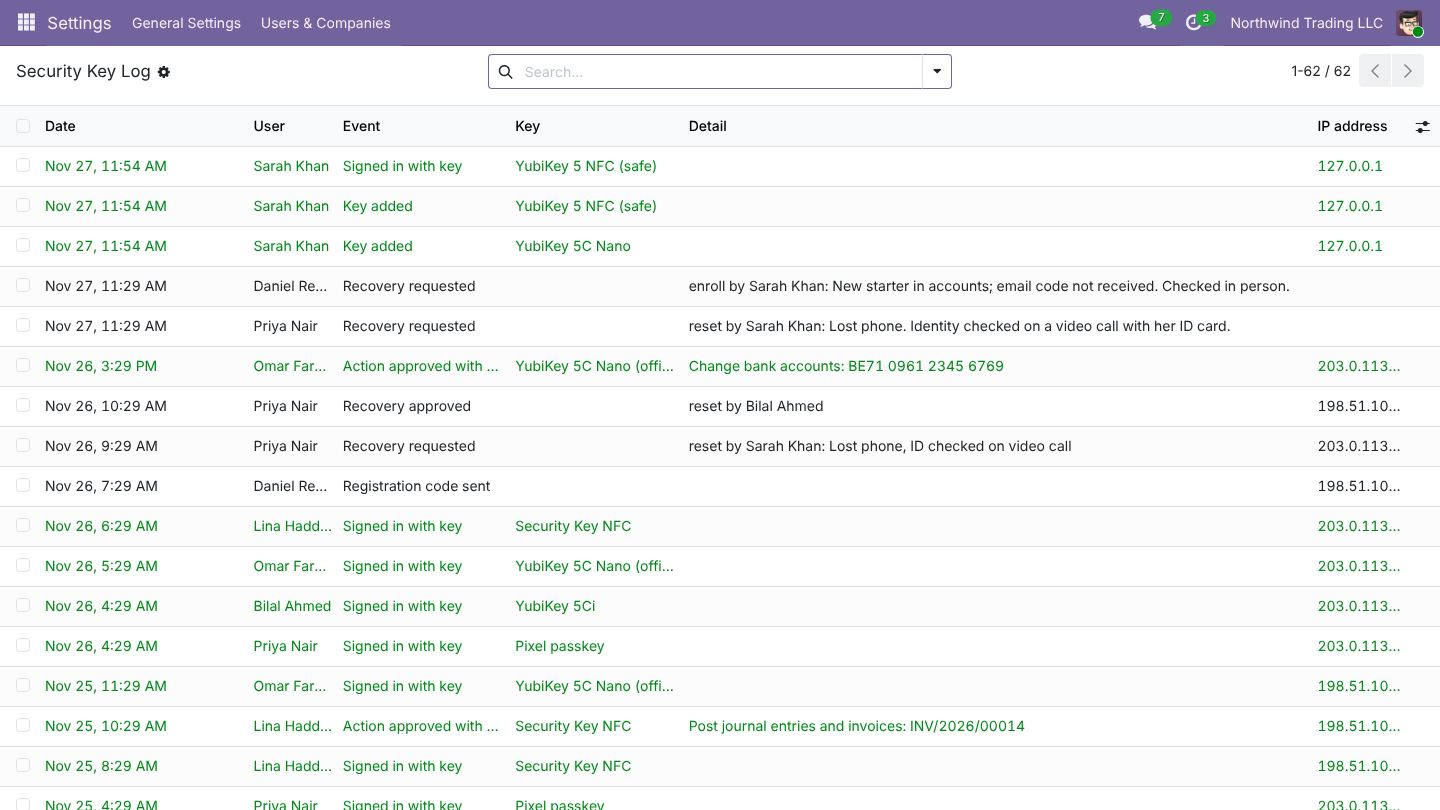
Settings > Users & Companies > SecureKey > Log records sign-ins with a key, failed attempts, keys added, renamed and removed, resets and (Pro) approvals, with the IP address.
Odoo is a trademark of Odoo S.A. SecureKeys, SecureKey 2FA and Action Approvals are independent products by Novator Technologies. They are not official Odoo products and are not endorsed or supported by Odoo S.A. Trademark notice.